Step 1: Pair the screen
On the TV, laptop, Pi, or tablet, open the player URL and type the 6-character code from your dashboard. It is online in a few seconds. No app store, no per-device license, no MAC address to register.
Open the player URL on any display — a smart TV, an old laptop, a €35 Raspberry Pi behind the counter — and type a 6-character code. Now it is a screen you control from your desk. Design it, schedule it, and it keeps playing on its own while you get on with the day.
No credit card. 100 MB storage. 1 screen. Free for 3 months.
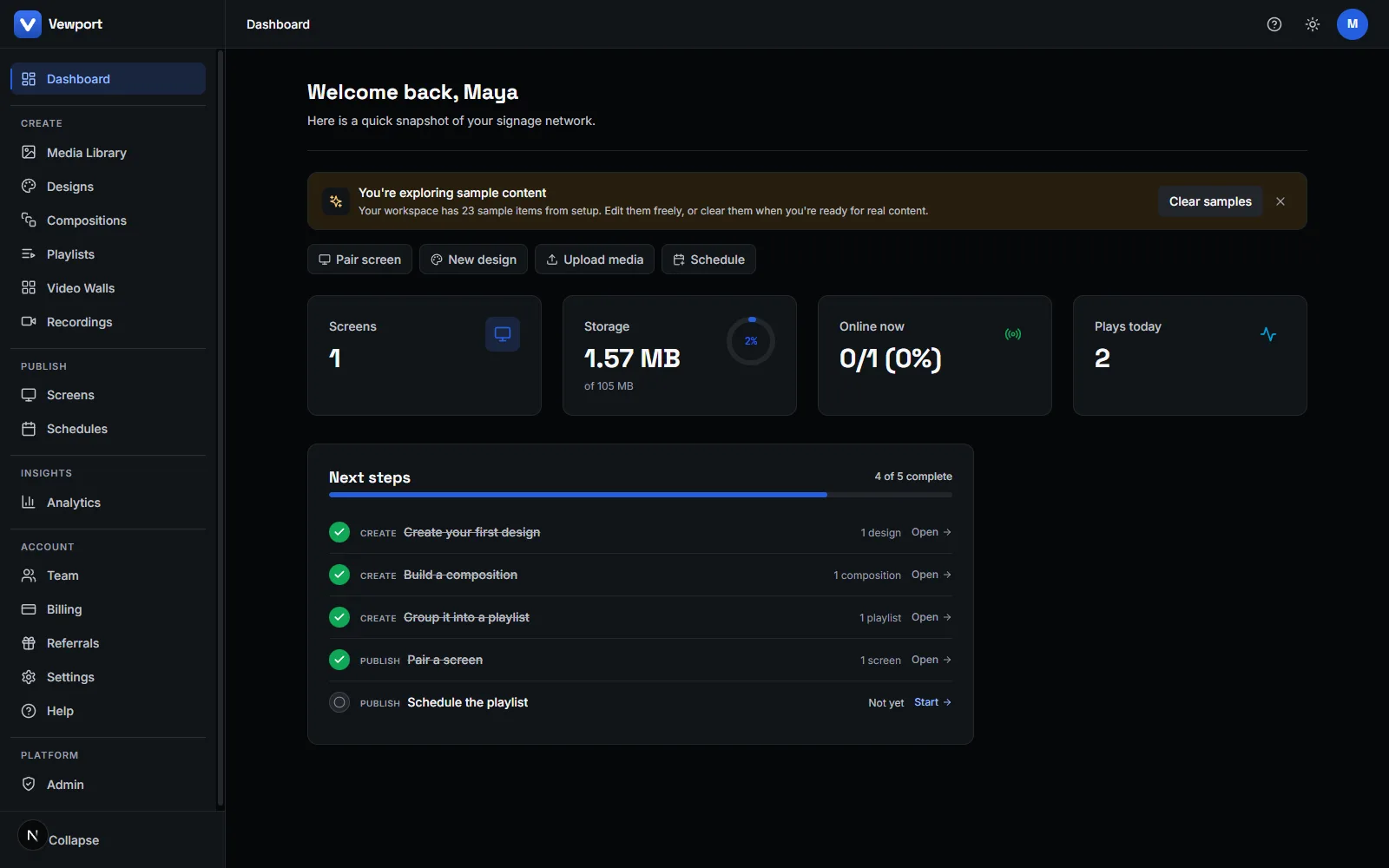
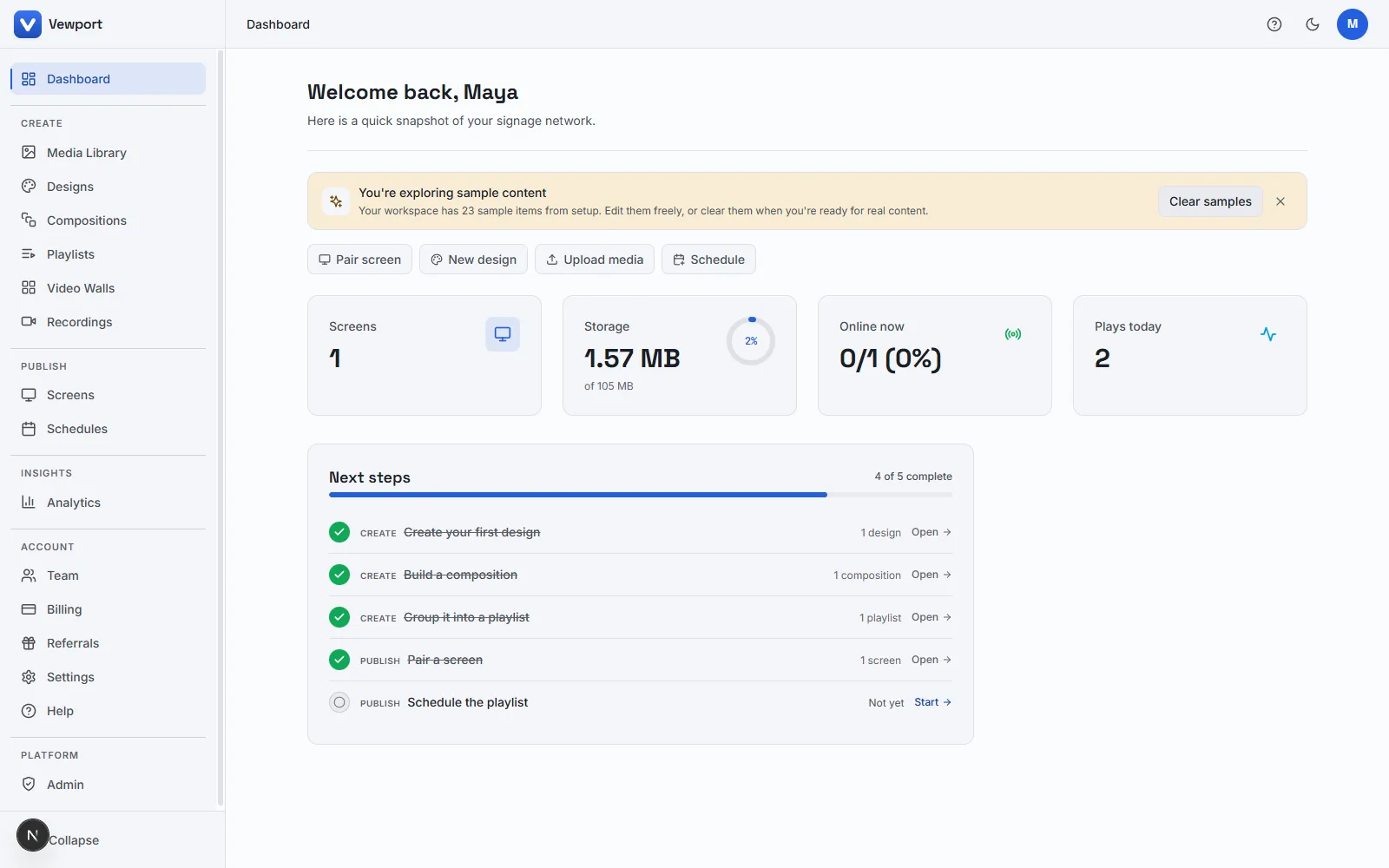
The actual editor · paired in under a minute
Built for
How it works
No installer, no box in the post, no ticket for IT. Pair the screen, build what it shows, set when it shows — then leave it alone.
On the TV, laptop, Pi, or tablet, open the player URL and type the 6-character code from your dashboard. It is online in a few seconds. No app store, no per-device license, no MAC address to register.
Start from a template or a blank canvas, add media, and snap elements into place. Save it as a design the whole team can reuse, so the second screen takes minutes instead of starting over.
Add time-of-day and recurring rules, push to one screen or a group, and Vewport runs it unattended — playing through a network drop and resyncing on its own when the connection returns.
Make a screen, decide when it shows, and trust it to stay up. Most tools are good at one of the three. Here is how Vewport handles each.
Open a template or a blank canvas in the browser, drop in your logo and a photo, drag things until they line up — guides snap them for you. Save it, reuse it, and the next person on the team starts from your version instead of a blank page.
Tell a screen to show the breakfast board until 11:00, the lunch menu until 14:00, then the evening loop. Set it once. Point the same rules at one screen or a whole group of them — the cafés flip over together without anyone touching a remote.
The player is a web page, so a smart TV, an old laptop on HDMI, a Raspberry Pi, or a tablet in kiosk mode all work — paired with a 6-character code, nothing to install. If the Wi-Fi drops it keeps playing the cached loop and resyncs when it comes back.
Will my screen work?
The player is a web page, so most modern displays already qualify. We don't sell hardware — run it on the screens you already have, or add a €35 device to the ones that can't browse on their own.
Samsung Tizen / SSSP
Open the player URL in the panel's built-in browser or URL launcher.
LG webOS
Open the player URL in the built-in browser or URL-launch app.
Android SoC & Android TV
Chrome or any kiosk browser — Amazon Fire TV sticks included.
ChromeOS, Chromebox & Chromecast
Kiosk a Chromebox, or cast the player URL to the screen.
Any HTML5 display
Smart TVs, mini-PCs, a €35 Raspberry Pi, or a tablet in kiosk mode.
Screen with no browser?
A bare panel with only an HDMI input still works — add a small browser device (a Raspberry Pi, an Android / Fire TV stick, or a mini-PC), open the player URL once, and pair it like any other screen.
No native app to install, no app-store submission, no per-device license — the player is just a URL.
More on the pricing FAQ.
Free up to 1 screen and 100 MB of media for 3 months — enough to prove it works in your space before anyone signs a PO.
Create a free workspace